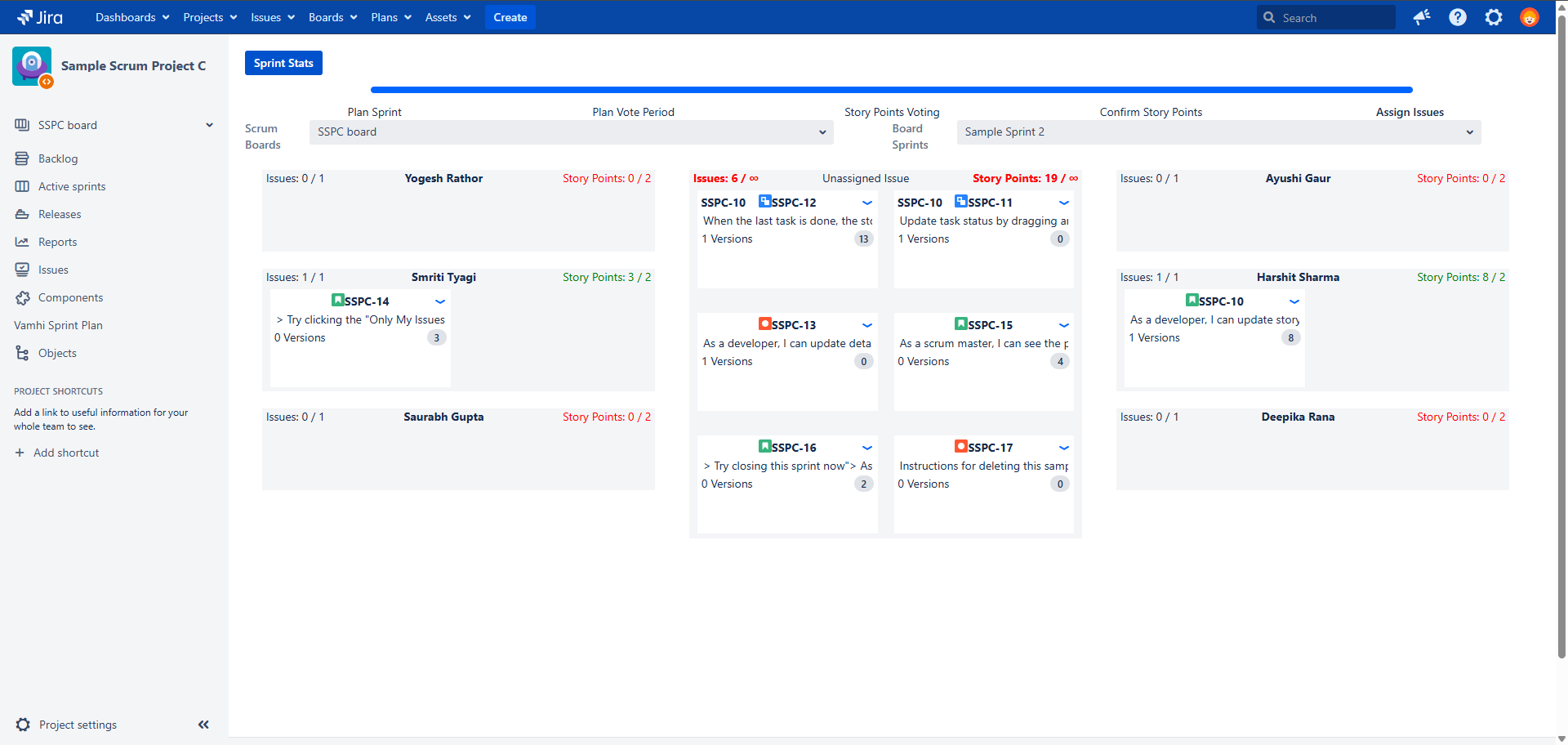
It displays metrics of completed sprints, helping teams plan future sprints more effectively.
It creates and manages sprints from start to finish by helping you:
Bring in issues – Import issues from other sprints or the backlog, with filtering support using custom fields.
Assign users and timelines – Add team members to the sprint and define start/end dates for proper tracking.
Estimate story points – Use poker planning, with the option for members to pre-assign points if they can’t attend the live session.
Vote in real time – Conduct live story point voting during meetings for faster team alignment.
Assign issues post-planning – Once planning is complete, assign issues to users for execution.
How to Use the Sprint Plan Module: Step-by-Step Instructions
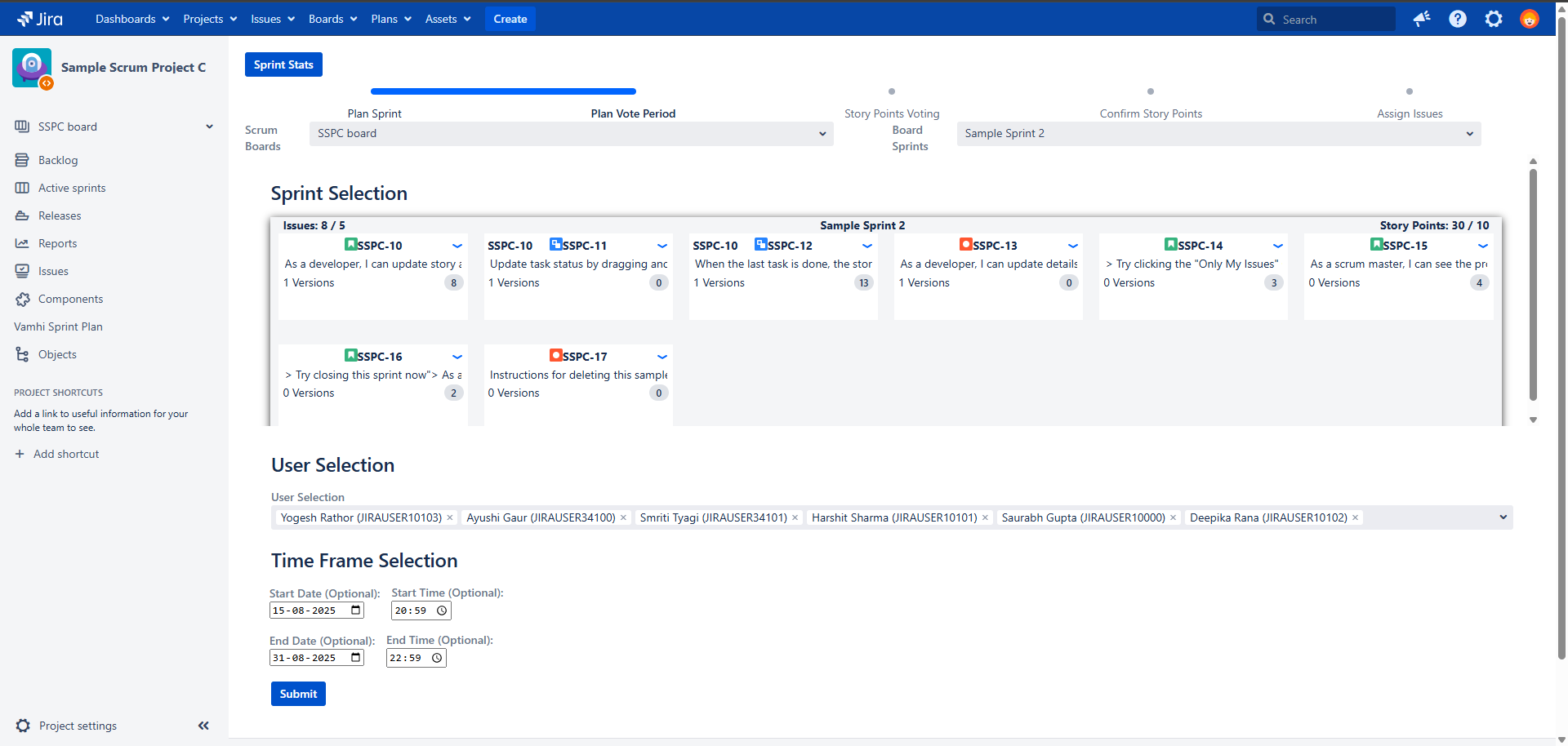
On clicking Vamhi Sprint Plan, you will be prompted to select a board and then choose the sprint you want to plan.
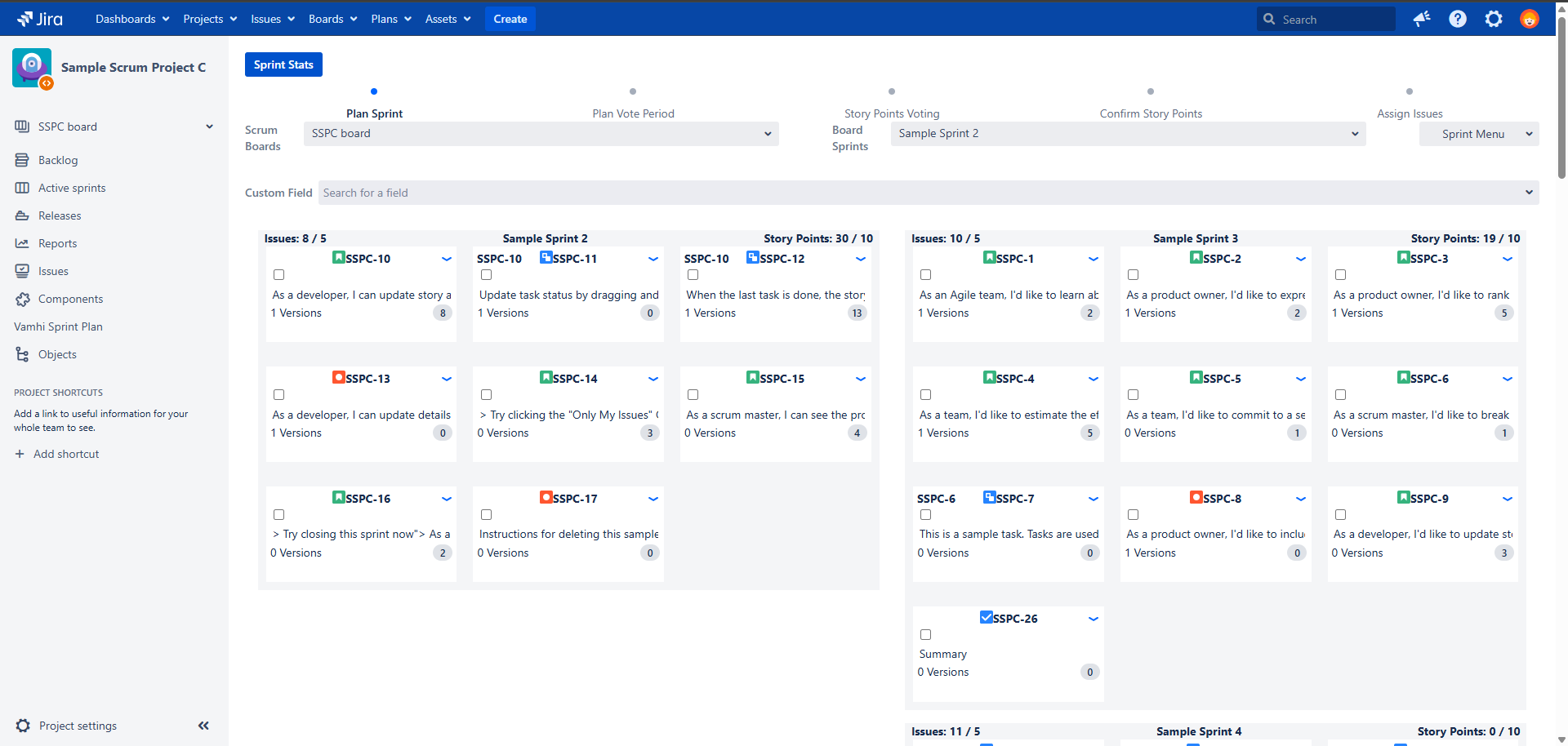
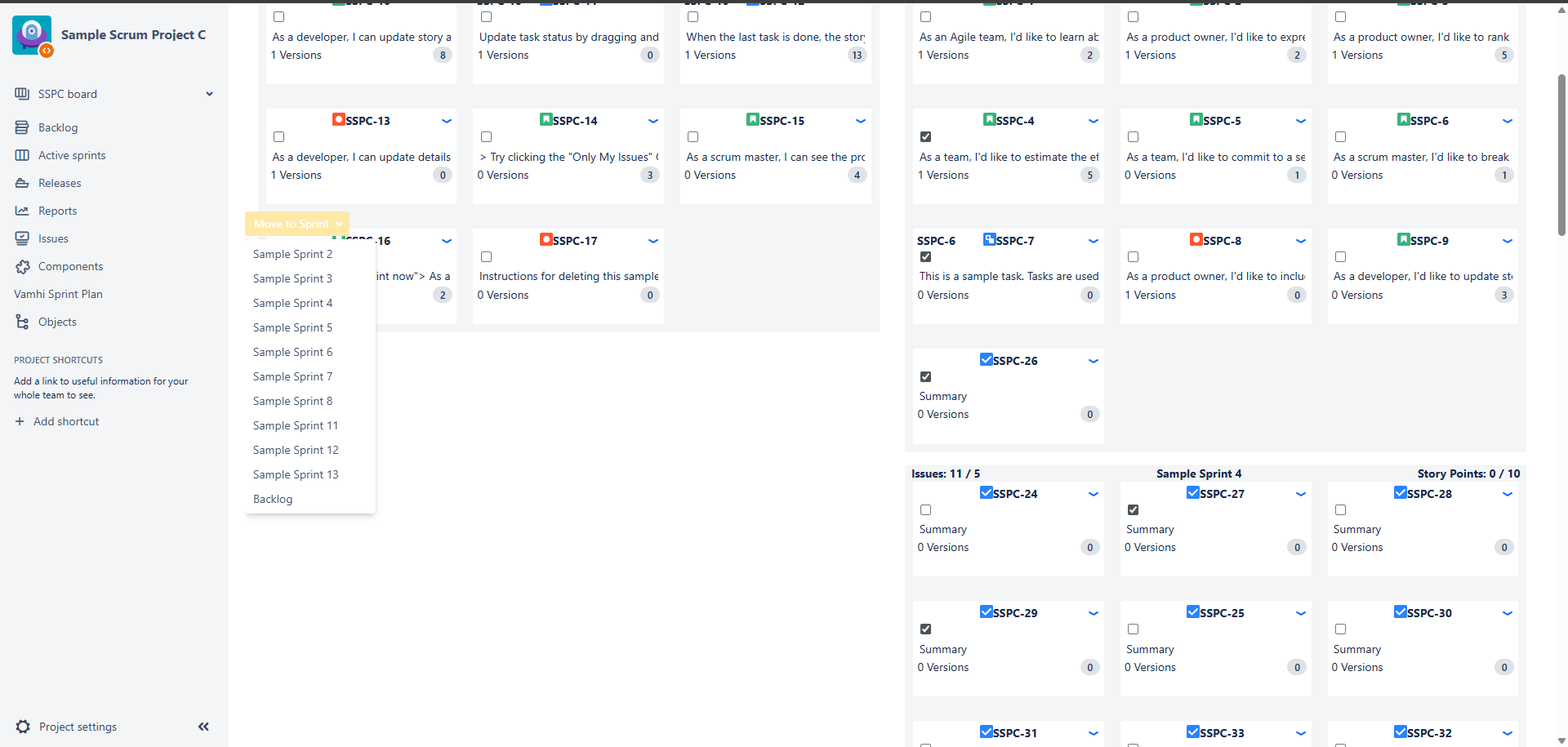
You can add or remove issues from the currently selected sprint using drag-and-drop, and also perform bulk operations by selecting multiple issues through the issue widget.
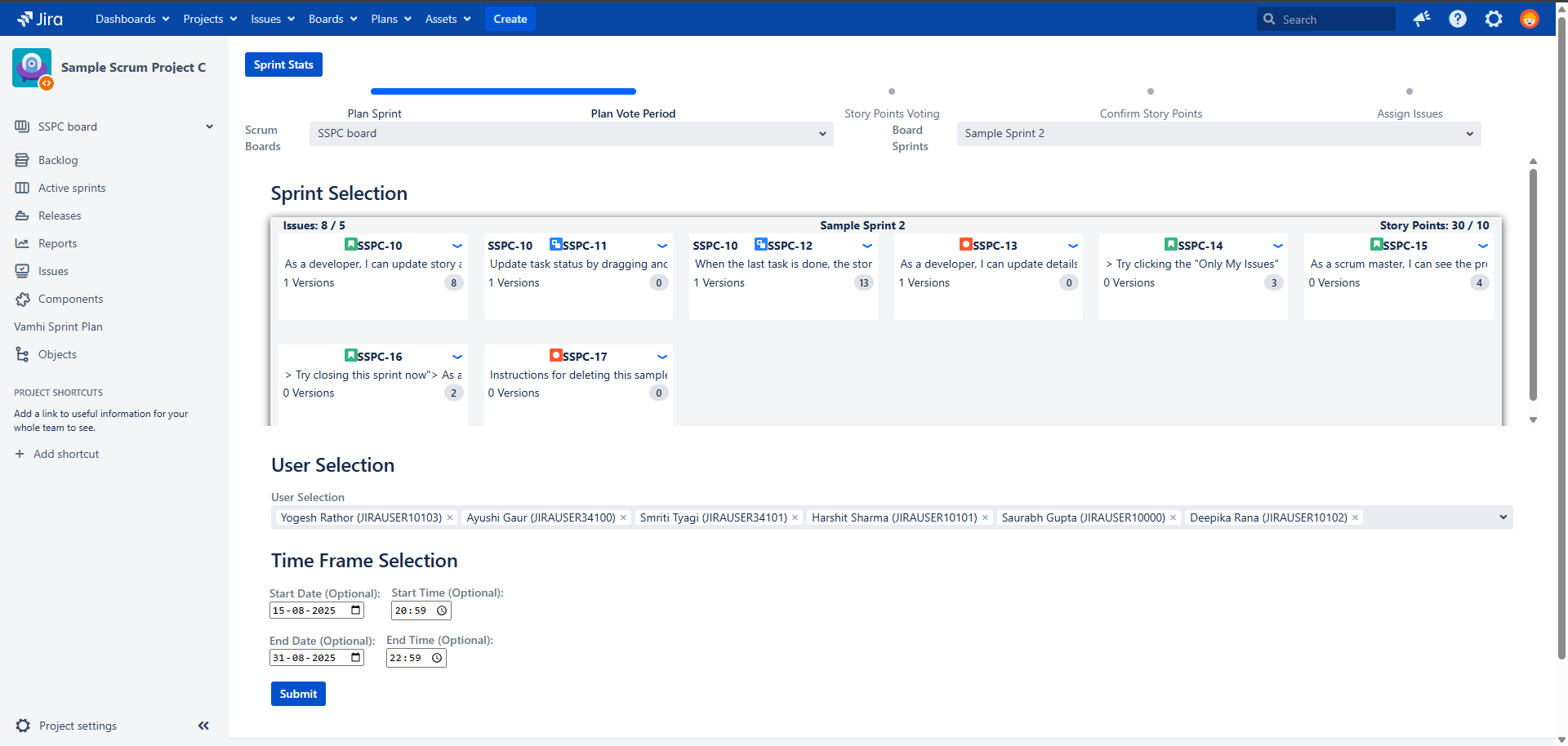
After finalizing the issues in a sprint, you can assign users and set the start and end time by clicking on Plan Vote Period. Remember, only the Sprint Manager can submit the sprint plan form.
After completing the above process, the Sprint Master can share the Story Point Voting screen with users, allowing them to submit their personal estimations for each issue before the meeting starts.
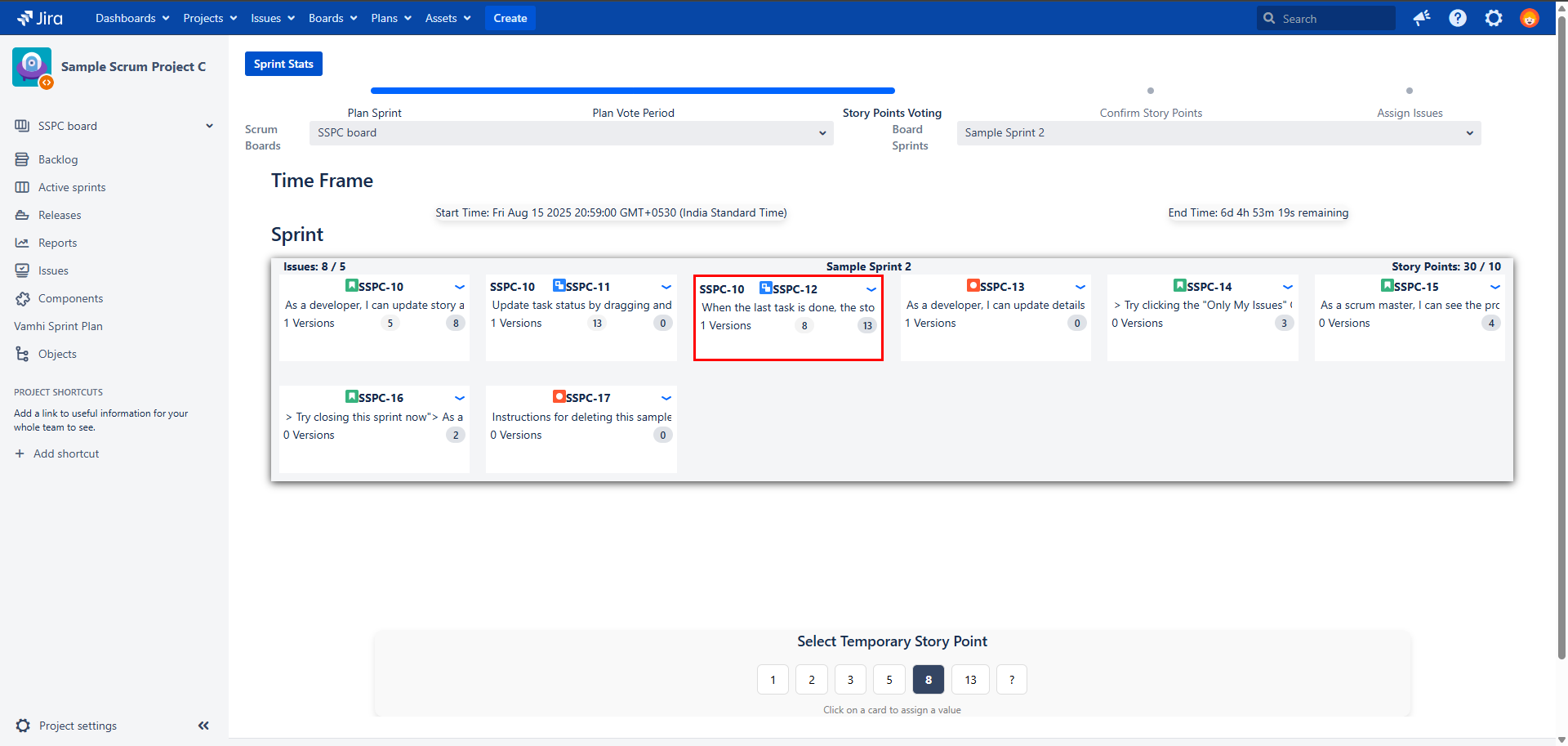
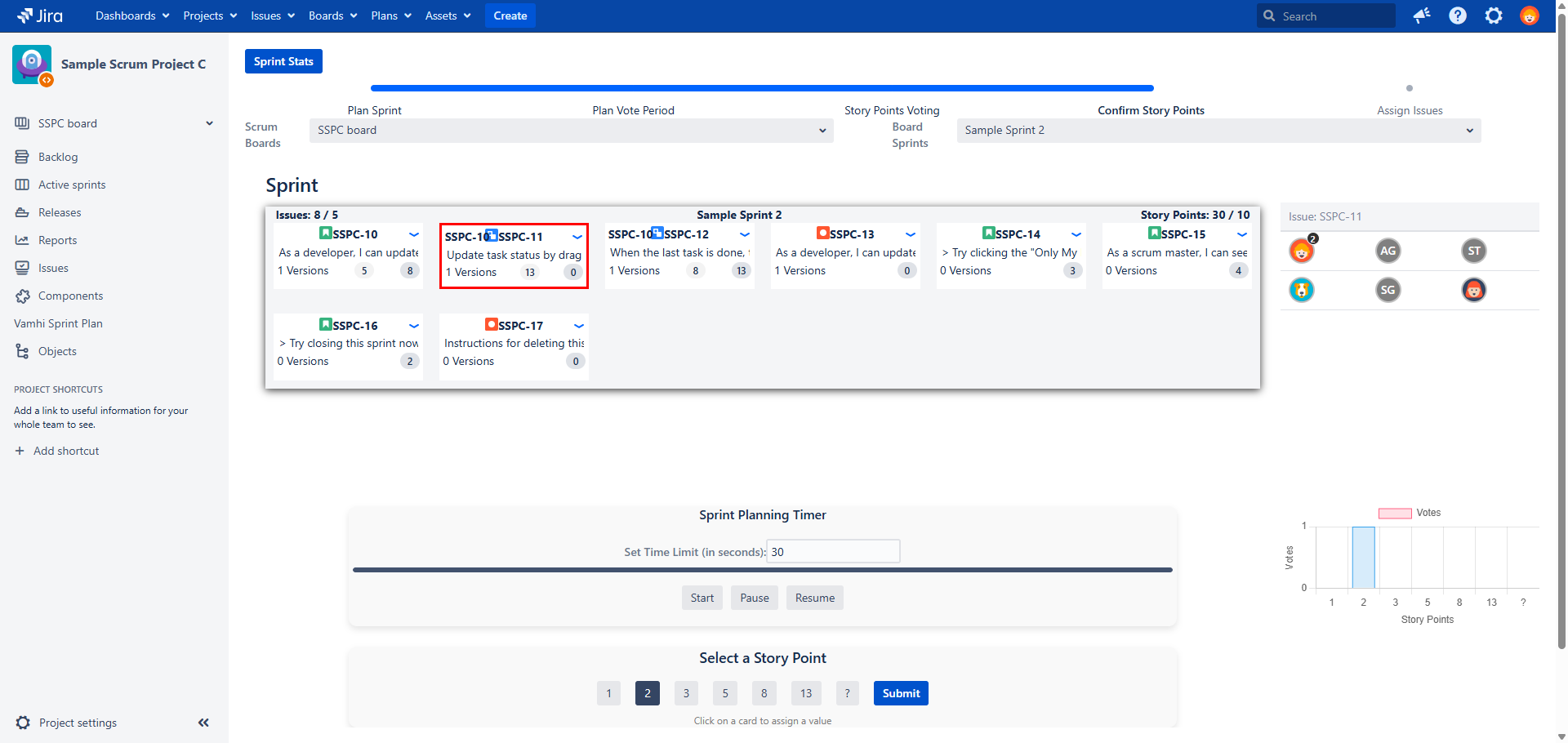
The next step in sprint planning is live story point voting. Each user can open the Confirm Story Point screen, while the Sprint Master starts the voting session for each issue. Once an issue is selected, it is highlighted and reflected on all users’ screens, allowing them to assign story points. When the timer ends, the results are displayed, and based on these, the Sprint Master can submit the final story points for the issue.
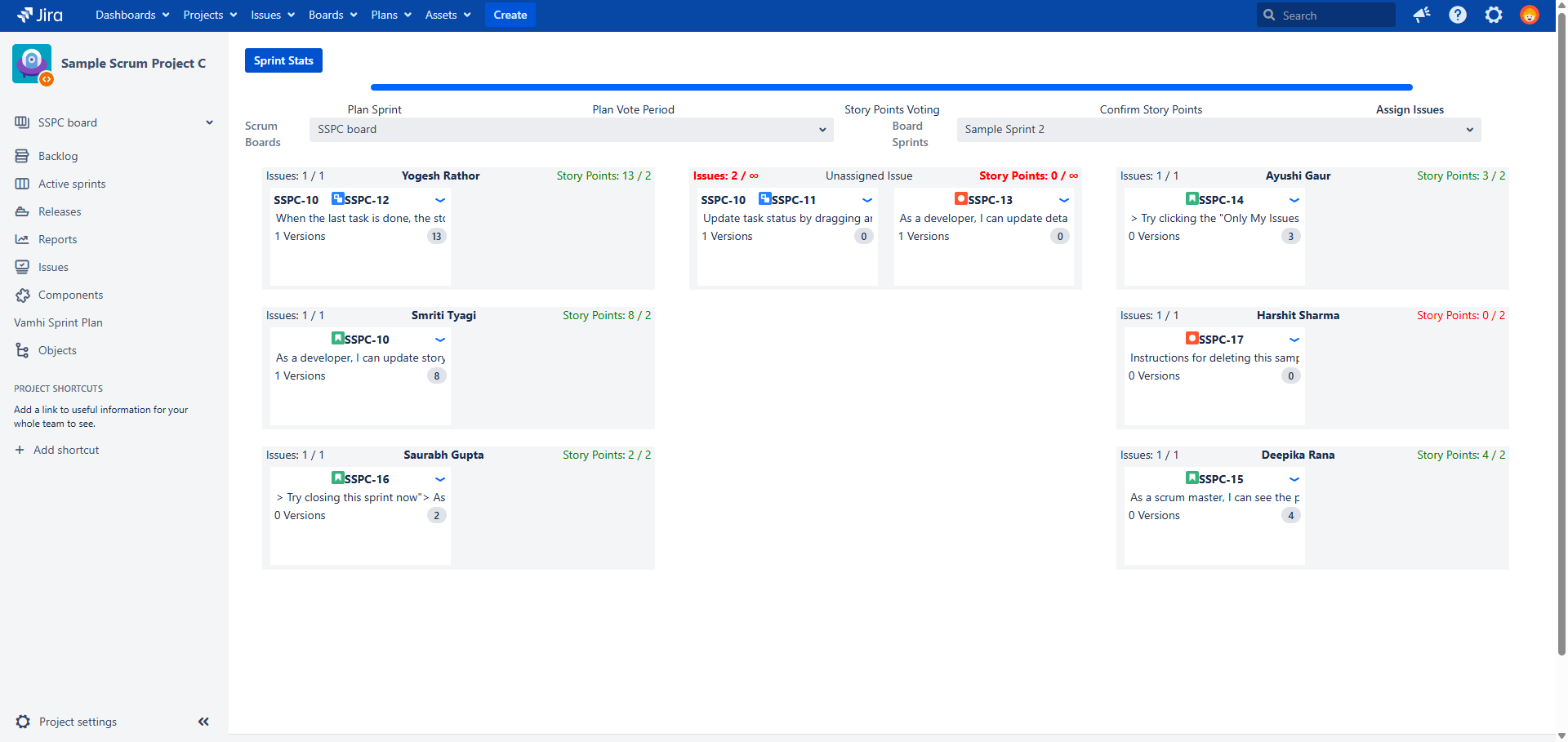
The final step in sprint planning is assigning issues to users, which can be done easily through drag-and-drop.
Additional Features to Support Sprint Planning
This feature helps Sprint Masters avoid overloading the sprint by defining limits on both story points and number of issues.
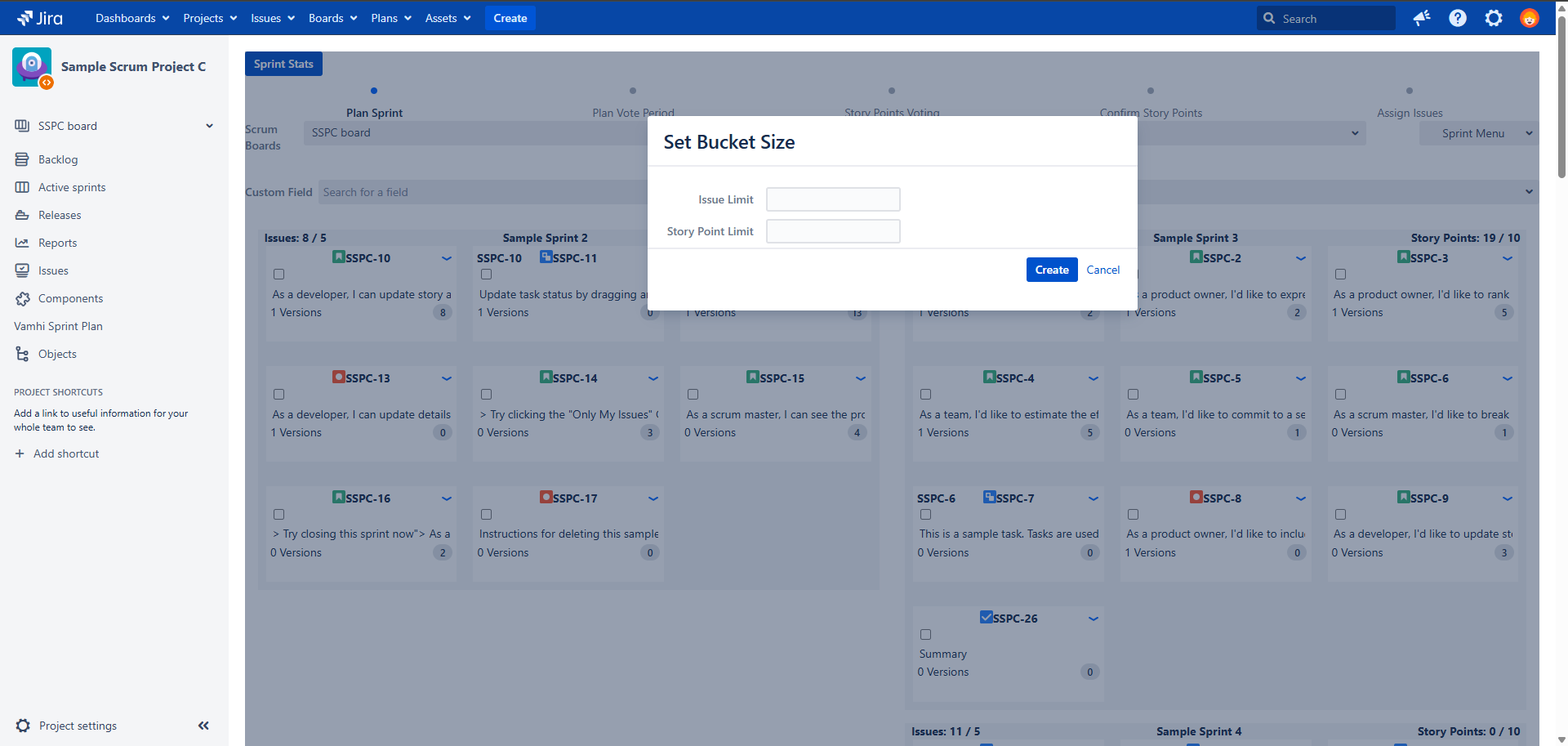
After setting the limits, they are displayed in the Sprint Grid container — with the story point bucket shown on the top right and the issue limit on the top left.
This feature helps Sprint Masters assign issues to users by setting limits on both story points and issue count. These limits are displayed in each user’s grid container, calculated as the sprint limit divided by the number of users. For example, if the sprint limit is 40 story points and 20 issues with 4 users, then each user’s grid container will show 10 story points (top-right) and 5 issues (top-left).If a user’s assigned story points fall below the calculated limit, the value is displayed in red; otherwise, it is shown in green.